
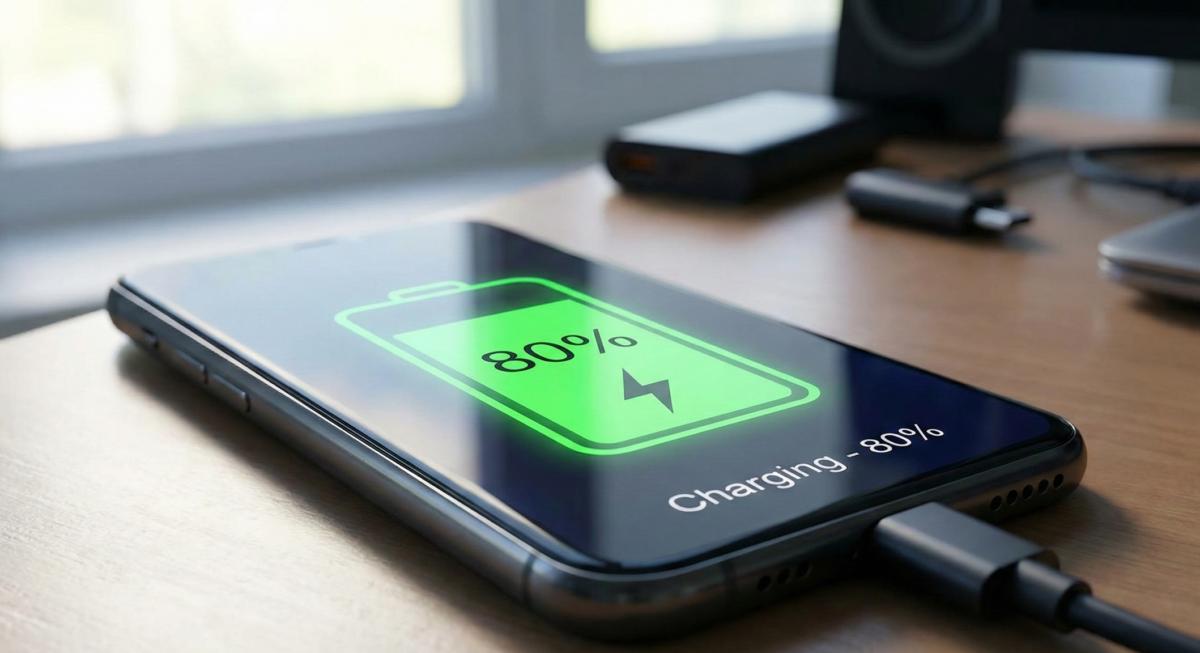
Simple ways to protect your privacy, improve performance, extend battery life, and get more out of your smartphone.
Your smartphone does much more than make calls. It stores your photos, contacts, passwords, payment information, work documents, and personal conversations. But are you using all the features available to keep your device secure, running smoothly, and working for you?
Whether you use an iPhone or Android, a few simple changes can make a big difference. As smartphone technology continues to evolve, security updates, scam protection, privacy controls, and built-in automation are becoming increasingly important.
Here are 10 cell phone tips you should start using in 2026 and carry into 2027.
1. Block Spam Calls and Recognize Scam Messages
Unwanted calls and suspicious text messages are more than annoying. Scammers may impersonate banks, delivery companies, government agencies, or even people you know to trick you into sharing personal information.
What you should do:
Turn on your phone's built-in spam call filtering. Silence or screen calls from unknown numbers if that suits your needs. Block and report suspicious callers and text messages. Never click unexpected links or share verification codes in response to unsolicited messages. If a message claims to be from your bank, contact the bank using its official app or the number on your card.
On iPhone: Open Settings and look under Apps → Phone for call-screening and spam-filtering options. Exact options vary by iOS version and region.
On Android: Open the Phone app → Settings and look for Caller ID and spam protection or Call Screen, depending on your device.
Scammers can spoof familiar phone numbers, so a recognizable caller ID is not proof that a call is legitimate. Google's security team has highlighted evolving impersonation and mobile scam tactics in its 2026 guidance.
Techy Tip: When in doubt, hang up and contact the organization directly through a trusted number or website.
2. Protect Your Phone With a Strong Passcode and Biometrics
Your phone can provide access to email, banking apps, saved passwords, photos, and social media accounts. If someone gains access to an unlocked device, the consequences can extend well beyond the cost of replacing the phone.
What you should do:
Use a strong passcode or password. A longer alphanumeric passcode is harder to guess than a simple PIN. Enable Face ID, Touch ID, or your Android phone's supported biometric security. Hide sensitive message previews on your lock screen. Enable two-factor authentication for important accounts. Use unique passwords or passkeys wherever supported.
On iPhone: Open Settings → Face ID & Passcode or Touch ID & Passcode.
On Android: Open Settings and look under Security, Security & privacy, or Lock screen.
Passkeys are also worth exploring. They let you sign in to compatible apps and websites using your device's authentication rather than relying on a traditional password.
Techy Tip: Avoid easy-to-guess passcodes such as birthdays, repeating digits, or simple sequences.
3. Turn On Automatic Backups Before You Need Them
Imagine losing your phone and discovering that your photos, contacts, and important documents were never backed up. A damaged screen or failed device can quickly become a data-loss problem.
Automatic backups help protect the information you cannot easily replace.
What you should do:
Enable automatic device backups. Confirm that your photos and videos are being backed up. Check that your contacts and other important information are syncing. Review available cloud storage and make sure your backups are completing successfully. Periodically verify that you can access your backed-up information.
On iPhone: Go to Settings → your name → iCloud → iCloud Backup.
On Android: Look under Settings → Google → Backup. Menu names may vary by manufacturer and Android version.
Remember that a device backup, photo library sync, and file-storage service may cover different types of information. Do not assume that everything on your phone is protected simply because one backup setting is enabled.
Techy Tip: Check your backup status today, not after your phone is lost, stolen, or damaged.
4. Keep Your Phone Updated for Security and Performance
Software updates are not just about new emojis, redesigned menus, or exciting features. They can also fix security vulnerabilities, improve stability, and address problems that put your personal information at risk.
Apple's 2026 security guidance specifically emphasizes keeping iPhones updated to protect against attacks targeting outdated software.
What you should do:
Enable automatic operating system updates when available. Install security updates promptly. Keep your apps updated through the official app store. Restart your phone occasionally if it is behaving unusually. Check whether your device still receives security updates from its manufacturer.
On iPhone: Settings → General → Software Update.
On Android: Open Settings and look for System → Software updates or Security & privacy, depending on the device.
If your phone no longer receives security updates, consider discussing upgrade options with a qualified repair or technology professional.
Techy Tip: Make checking for updates part of your monthly phone maintenance routine.
5. Free Up Storage and Keep Your Phone Running Smoothly
Running out of storage can interfere with downloads, software updates, photography, and everyday app use. Large videos, duplicate photos, old downloads, and unused apps are common places to start.
What you should do:
Review your largest files and videos. Remove apps you no longer use. Delete unnecessary downloads and screen recordings. Review duplicate photos and blurry pictures before deleting them. Use your phone's built-in storage recommendations. Clear an individual app's cache when troubleshooting Android app problems, where that option is available.
On iPhone: Settings → General → iPhone Storage.
On Android: Settings → Storage, or search Settings for Storage.
Try to maintain some free space rather than letting your device become completely full. Keeping roughly 10–20% of storage available can be a useful practical target, although it is not a universal requirement for every phone.
Important: Clearing an app's data is different from clearing its cache and may delete downloaded content, settings, or locally stored information. Review the consequences before confirming.
Techy Tip: Before deleting photos or videos, confirm whether they are backed up. Some cloud photo services synchronize deletions across devices.
6. Make Your Battery Last Longer
Battery life depends on your device, battery condition, signal strength, screen brightness, apps, and how you use your phone. Fortunately, a few adjustments can reduce unnecessary power consumption.
What you should do:
Reduce screen brightness or enable automatic brightness. Use Low Power Mode on iPhone or Battery Saver on Android when needed. Review which apps consume the most battery. Limit unnecessary background activity and location access. Use Dark Mode if you prefer it; it can reduce display power consumption on many OLED screens. Keep your phone away from excessive heat, especially while charging.
On iPhone: Look under Settings → Battery.
On Android: Open Settings → Battery and review battery usage and available power-saving options.
If your phone drains unusually quickly, shuts down unexpectedly, or becomes excessively hot during normal use, the issue may involve an aging battery, an app problem, or a hardware fault.
Techy Tip: If your phone's battery life has noticeably declined, have its battery health and charging system checked before assuming you need a new phone.
7. Review App Permissions and Protect Your Privacy
Many apps request access to your location, camera, microphone, contacts, photos, and other personal information. Some permissions are necessary for an app to work, while others may be unnecessary for its main purpose.
Taking a few minutes to review those permissions helps you decide what information you want to share.
What you should do:
Check which apps have access to your location. Allow location access only while using an app when appropriate. Review camera and microphone permissions. Limit access to photos and contacts when full access is unnecessary. Review advertising and tracking settings. Remove apps you no longer trust or use.
On iPhone: Settings → Privacy & Security.
On Android: Settings → Security & privacy → Privacy → Permission manager, or search for Permission Manager.
On supported Android devices, Google Play Protect can also scan apps for harmful behavior and warn you about potential threats.
Techy Tip: An app asking for access to your contacts, messages, or photos does not automatically mean it is malicious. However, permissions should make sense for what the app actually does.
8. Turn On Find My or Find Hub Before Your Phone Goes Missing
Losing your phone can mean losing more than a device. It can expose personal information, interrupt work, and create problems accessing important accounts.
Your phone's built-in location and recovery tools can help you locate it, lock it remotely, or erase its data when necessary.
What you should do:
Enable Apple's Find My or Google's Find Hub. Make sure your device is associated with your account. Review the location and offline-finding settings available on your device. Learn how to mark your phone as lost or lock it remotely. Keep your account recovery information current.
On iPhone: Settings → your name → Find My → Find My iPhone.
On Android: Search Settings for Find Hub or Find My Device. Confirm that the relevant service and location settings are enabled.
If your phone is lost, use the official Apple Find My service or Google's Find Hub service to locate or secure it. If you suspect theft, do not put yourself at risk trying to recover the device yourself.
Techy Tip: Test your recovery setup before an emergency. Knowing your account password and recovery options can make the process much easier.
9. Make Your Phone Work for You With Focus Modes and Automation
Your smartphone can help you manage your day instead of constantly interrupting it. Focus settings, routines, widgets, and accessibility features can automate common tasks and reduce distractions.
What you should do:
Schedule Do Not Disturb or a bedtime mode. Set up a Work Focus for meetings and important tasks. Use calendar and reminder widgets for quick access to your schedule. Create routines for recurring tasks on supported devices. Explore text-to-speech and other accessibility tools to listen to articles or read on-screen content aloud.
On iPhone: Explore Settings → Focus and the Shortcuts app.
On Android: Explore Modes, Do Not Disturb, and your device's automation or routines features. Availability varies by manufacturer.
For example, you could silence nonessential notifications at bedtime, create a driving routine that limits distractions, or set a reminder to back up important files.
Techy Tip: Start with one useful automation. You do not need to automate everything to save time.
10. Organize Your Home Screen and Notifications for Less Stress
A cluttered home screen can make simple tasks take longer. Constant notifications can also distract you from work, family time, and everyday activities.
A little organization can make your phone easier to use.
What you should do:
Keep your most-used apps easy to reach. Group similar apps into folders, such as Banking, Travel, Work, and Photography. Add calendar, weather, or task widgets if they are useful to you. Turn off nonessential app notifications. Use Focus or Do Not Disturb settings when you need uninterrupted time. Keep quick settings such as Wi-Fi, Bluetooth, flashlight, and hotspot accessible.
On iPhone: Touch and hold the Home Screen to edit app placement and widgets. Review Settings → Notifications to customize alerts.
On Android: Touch and hold the Home Screen to organize apps and widgets. Swipe down to access Quick Settings, and review Settings → Notifications.
Techy Tip: Your home screen should make your most common tasks easier, not encourage you to spend more time scrolling.
Bonus: Three More Smartphone Habits Worth Adopting
The ten tips above cover the essentials. These additional habits can provide another layer of protection and convenience.
Be cautious on public Wi-Fi. Avoid entering sensitive information on unfamiliar networks when you cannot verify their legitimacy. Use secure websites and your trusted mobile connection when appropriate.
Use built-in accessibility tools. Features such as text size adjustments, magnification, voice control, and spoken content can make your phone more comfortable and convenient to use.
Know when to seek professional help. Persistent charging issues, damaged screens, overheating, unexpected shutdowns, and suspected malware deserve attention. Back up important data and seek qualified assistance rather than repeatedly trying fixes that could cause more problems.
Your 2026–2027 Smartphone Checklist
You do not need to change everything at once. Start with these important tasks:
Enable a strong screen lock and biometrics.
Turn on automatic backups and verify they work.
Install available security updates.
Enable spam call and message protections.
Review app permissions.
Set up Find My or Find Hub.
Remove unnecessary files and apps.
Review battery usage and charging habits.
Silence unnecessary notifications.
Explore one useful shortcut or automation.
Final Thoughts: A Smarter Phone Starts With Better Habits
Your smartphone is one of the most useful devices you own, but it needs regular attention. Keeping your software updated, protecting your accounts, backing up your information, and reviewing privacy settings can help you get more from your device while reducing avoidable risks.
The best time to prepare for a lost phone, a failing battery, or a security issue is before it happens.
Need help with your smartphone? Techy can help with device troubleshooting, screen and battery repairs, software issues, data-transfer assistance, and other technology services, depending on your location. Visit TechyCompany.com to explore services and find a location near you.
Techy — Repair. Install. Protect.