


How to check if iPhone is unlocked matters when you’re switching carriers, traveling overseas, or buying a used iPhone. A carrier-unlocked iPhone lets you activate a new SIM or eSIM without getting stuck on one network. This quick check can save you time, money, and a lot of frustration.
In this guide, you’ll learn the fastest ways to confirm your iPhone unlock status using the Carrier Lock setting in iOS, a simple SIM test, and an IMEI check when needed. You’ll also see what “No SIM restrictions” means, what to do if you get “SIM not supported,” and how to avoid locked iPhones before you buy.
What Does It Mean for An Iphone to Be Unlocked?
How to check if iPhone is unlocked starts with understanding what “unlocked” really means. An unlocked iPhone works with most carriers, while a carrier-locked iPhone stays tied to one network. Knowing your iPhone unlock status helps when switching carriers, traveling, buying used, or selling with confidence.
Unlocked vs. Carrier-Locked (Simple Explanation)
A carrier-locked iPhone is tied to one network. That means it will only work with that carrier’s SIM or eSIM until the carrier unlocks it. People often run into this when they buy a used phone, try to switch providers, or travel and want to use a local SIM.
An unlocked iPhone gives you more freedom. You can use it with most carriers as long as the iPhone supports that network’s bands and the carrier accepts the device. In simple terms, you’re not stuck with one provider, so switching is much easier.
When You Really Need to Check
You don’t have to check unlock status every day, but these situations make it important:
- Buying a Used iPhone: Sellers may say “unlocked,” but it’s smart to verify before you pay. It saves you from activation surprises later.
- Switching Carriers: If you’re moving from one provider to another, an unlocked iPhone helps you start service faster with fewer setup problems.
- International Travel (local SIM): Many travelers prefer a local SIM or eSIM for cheaper data and calls. If the iPhone is locked, you may not be able to activate that plan.
- Selling your iPhone: Buyers trust listings more when you can confirm the iPhone is Unlocked. It also helps you sell faster and avoid back-and-forth questions.
How to Check If Your iPhone Is Unlocked – Fast + 5 Reliable Methods
How to check if iPhone is unlocked is simple when you follow the right steps. Use these fast methods to confirm your iPhone unlock status, including the Carrier Lock setting, a SIM test, and IMEI checks. Get clear answers before switching carriers, traveling, or buying a used iPhone.
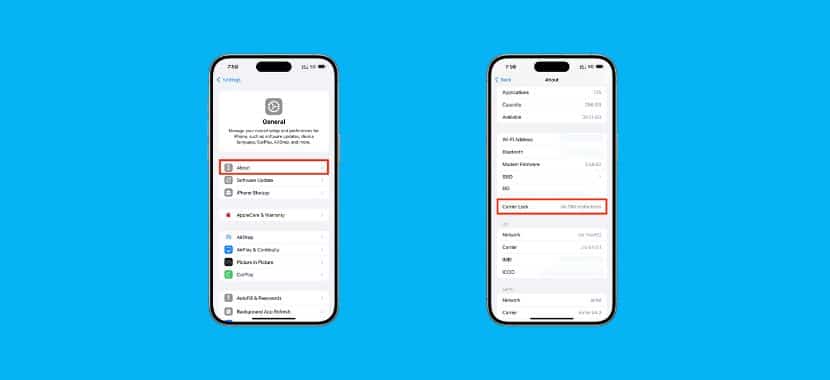
Method 1 (best): Check “Carrier Lock” in Settings
This is Apple’s recommended method for checking.
Steps
- Open Settings
- Tap General
- Tap About
- Scroll to Carrier Lock
How to Read the Result
- “No SIM restrictions” → typically unlocked
- Anything else (or it shows a carrier restriction) → likely locked
Pro tip (for used iPhones): Take a screenshot of this screen when you’re selling. Buyers trust it because it’s inside iOS.
Method 2 (most convincing): Test With Another Carrier SIM
If you’re buying a used iPhone, this is the proof test.
What to Do
- Power the iPhone off.
- Insert a SIM from a different carrier.
- Power it on.
- Try a call, text, and mobile data.
What the Results Mean
- If it activates and connects, that’s a strong sign it’s unlocked.
- If you see errors like “SIM not supported,” it’s often carrier-locked and needs the original carrier to unlock it. Apple notes that only the carrier can unlock an iPhone.
Don’t Get Fooled by False Alarms
Sometimes the phone is unlocked, but you still won’t get service because:
- The SIM isn’t active
- There’s weak coverage where you are
- The carrier needs a settings update (iOS will sometimes prompt this in About)
Method 3: Confirm with your carrier (official answer)
If you want the “no debate” answer, especially for a used phone, go straight to the carrier.
What to ask (copy/paste)
- “Can you confirm if this iPhone (IMEI) is carrier unlocked?”
- “Is there any balance, installment plan, or policy preventing unlock?”
- “If locked, what are the exact steps and timeline to unlock it?”
Apple is Clear: Apple can’t unlock it—only the carrier can.
Method 4: eSIM test (great when you don’t have a physical SIM)
This is useful for people who can’t borrow a SIM easily.
How it works
- Try adding an eSIM plan from a different carrier. If your iPhone allows activation and connects, that’s a strong sign it’s unlocked.
- Apple also notes that for eSIM-related issues, you may need to contact your carrier.
Watch out: eSIM can fail for non-lock reasons (Wi-Fi issues, carrier outage, incorrect QR code/activation steps). So treat this as strong evidence, not the only signal.
Method 5: IMEI check (useful, but don’t rely on it alone)
IMEI tools can be helpful, especially when buying used, because they may surface extra risk signals. But results can be outdated or inconsistent depending on the data source.
How to find your IMEI
- Settings → General → About, or
- Dial *#06#
What to use IMEI checks for
- A supporting clue about the lock status
- Extra caution flags (varies by service)
- Best practice: Use IMEI tools as a screening step, then confirm with Settings and a SIM test.
How to Unlock Your iPhone?
Unlocking your iPhone means removing the carrier lock so you can use the device on a different network. The key thing to know: only your carrier can unlock an iPhone; it’s not a setting you can flip yourself.
Step 1: Confirm Whether Your iPhone is Locked
Before you request anything, check your lock status in iOS:
- Go to Settings → General → About
- Look for Carrier Lock
- If you see “No SIM restrictions,” your iPhone is already unlocked.
Step 2: Contact Your Carrier and Request an Unlock
If it’s locked, contact the carrier your iPhone is tied to and ask for a carrier unlock. Apple’s guidance is clear: you’ll need the carrier to apply the unlock in their system, and it can take a few days.
What you’ll Usually Need:
- Your IMEI (find it in Settings → General → About, or dial *#06#)
- Account details (if you’re the original owner)
- Proof that the device meets the carrier’s unlock rules
Step 3: Make Sure You Meet Common Unlock Requirements
Unlock rules vary, but most carriers look for the same basics:
- The iPhone is paid off (no installment balance)
- The device is not reported lost/stolen
- The account is in good standing
- Some carriers have a minimum time window before unlocking (example: AT&T lists device age and paid-off requirements; Verizon describes an automatic unlock timeline after a set period).
Step 4: Finish the Unlock on Your iPhone
Once your carrier confirms the unlock is approved, Apple recommends completing the process by using a different carrier’s SIM/eSIM:
- Insert a SIM from another carrier (or activate another carrier eSIM)
- If it connects normally, the unlock is done.
If your iPhone is on iOS 13 or earlier, Apple notes you may need to restore the iPhone after the carrier applies the unlock, then restore from a backup.
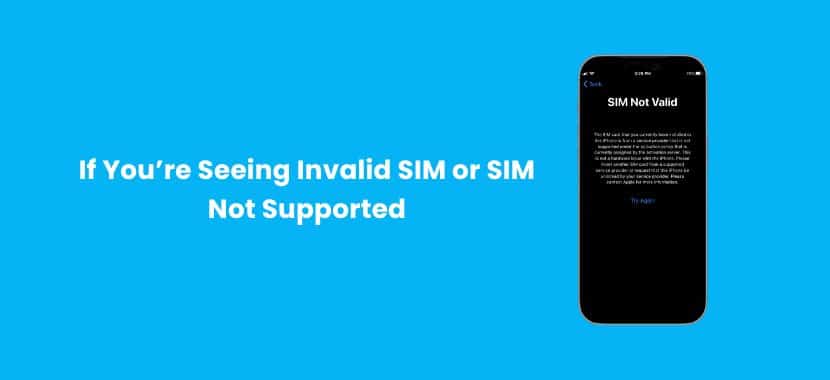
If You’re Seeing Invalid SIM or SIM Not Supported
Don’t assume it’s locked right away. Apple recommends checking your plan, restarting, updating carrier settings, reseating the SIM, or trying another SIM because some connection errors look like lock issues.
Techy Tip (repair-store helpful): If you’re stuck with SIM errors, eSIM won’t activate, or you can’t confirm unlock status, bring the device in. A quick in-store check can tell you if it’s truly carrier-locked or if you’re dealing with a SIM/eSIM or settings problem.
Avoiding Locked iPhones When Buying Second-Hand
Buying a used iPhone? Avoid surprises by checking iPhone unlock status before you pay. Verify Carrier Lock in Settings, test with another carrier SIM/eSIM, and confirm the IMEI looks clean. These quick checks help you avoid a carrier-locked iPhone and buy with confidence. Here are the simple steps:
Before You Meet (Ask the Seller)
- Activation Lock: Ask the seller to sign out of their iCloud/Apple ID and disable “Find My iPhone” before you meet.
- IMEI/Serial Number: Get the IMEI or Serial Number and check it on Apple’s Check Coverage page to see if it’s reported lost/stolen (look for blacklisted status).
- Carrier Lock: Ask if it’s carrier-unlocked.
When You Meet (Inspect In-Person)
- Activation Lock Screen: Turn the phone on (or reset it) and watch for the “iPhone Locked to Owner” screen during setup – if it appears, do not buy.
- Apple ID Prompt: If it asks for an Apple ID during setup, it’s locked; walk away.
- Settings Check: Go to Settings > [Your Name] (or iCloud) and ensure you see a “Sign In” prompt, not the seller’s account details.
- Carrier Check: In Settings > General > About, look for “Carrier Lock” – it should say “No SIM Restrictions” if unlocked.
Final Checks (After Purchase, Before Full Use)
- Factory Reset: Perform your own factory reset (Settings > General > Transfer or Reset iPhone > Erase All Content and Settings) to ensure a clean slate.
- Test Everything: Check cameras, buttons, Wi-Fi, speakers, microphone, and Face ID/Touch ID.
Troubleshooting Common Unlock Issues
Even when an iPhone should work on another network, a few common problems can make it look locked. Use the steps below to figure out what’s really happening.
Phone Shows SIM Not Supported
This message usually means the iPhone is carrier-locked to a different network, but it can also show up during activation or setup issues. Here’s how to troubleshoot it the right way:
1) Re-check the lock status in Settings
- Go to Settings → General → About
- Look for Carrier Lock
- If it doesn’t say “No SIM restrictions,” the phone is likely locked.
2) Make sure the SIM is valid
- Try the SIM in another phone to confirm it’s active.
- If the SIM is inactive or has no plan, the iPhone may fail to connect and trigger errors.
3) Update iOS + Carrier Settings
- Connect to Wi-Fi.
- Go to Settings → General → Software Update and update iOS (if available).
- Then go to Settings → General → About and wait a few seconds—if a carrier update prompt appears, install it.
4) Restart and Reseat the SIM
- Power off the iPhone, remove the SIM, reinsert it, and power on.
- If you have access, test with a different SIM from the same carrier to rule out a bad SIM card.
5) What to do if it Still Shows SIM Not Supported
- Contact the carrier that originally sold the iPhone and request an official unlock. Only the carrier can unlock it.
- If you bought it used, ask the seller for proof it was unlocked, or request a refund if they can’t help.
International SIM Doesn’t Work
If you’re traveling and a local SIM or eSIM won’t activate, don’t assume the phone is locked right away. These are the most common causes:
1) Confirm the iPhone is Actually Unlocked
- Check Carrier Lock in Settings.
- If the iPhone is locked, you may only be able to use roaming with the original carrier.
2) Check network compatibility [H4]
Some carriers overseas use bands that your iPhone model may not fully support. If the iPhone connects but performance is weak, compatibility or coverage may be the issue.
3) Turn on the Right Settings
- Go to Settings → Cellular
- Make sure Cellular Data is on
- Enable Data Roaming (often required for travel plans or certain setups)
4) Select the Network Manually
- Settings → Cellular → Network Selection
- Turn off Automatic, then choose the local carrier manually.
- This helps when the iPhone keeps grabbing the wrong network.
5) Reset Network Settings (quick fix)
- Settings → General → Transfer or Reset iPhone → Reset → Reset Network Settings
- This can fix stubborn carrier connection problems after swapping SIMs.
6) eSIM Activation Issues
If you’re using eSIM, double-check:
- You’re on stable Wi-Fi
- The QR code/activation link is correct
- The carrier’s activation hasn’t expired
- Your iPhone supports eSIM for your region/model
Sell Your Used iPhone With Techy
Selling your used iPhone is easy with Techy. Bring your device in for a quick check, and we’ll help confirm condition, carrier unlock status, and basic functionality so you can sell with confidence. It’s a smart option if you’re upgrading or want cash for your old iPhone fast.
Techy makes the iPhone buyback process simple with fair offers and helpful support. Whether you have an unlocked iPhone or need help verifying iPhone unlock status, our team can guide you and help you move your device quickly.
Other Guides:
- How to Unlock a Blu Phone?
- Tips for Repairing Water-Damaged Smartwatches
- Where is the Power Button on an Asus Laptop – 5 Tips for Locating
- How to Check If Your Phone Is Tapped (Complete Guide)
The Bottom Line
How to check if iPhone is unlocked is easiest when you start with Settings → General → About and look for Carrier Lock. If it shows No SIM restrictions, your iPhone unlock status is usually clear. For extra confidence, do a quick SIM or eSIM test with another carrier before you switch networks, travel, or buy used.
If you still see errors like SIM not supported or your international SIM won’t activate, it may be a carrier lock, a setup issue, or a network compatibility problem. Confirm the IMEI details when needed and contact the carrier for an official unlock. When in doubt, a quick in-store check can save you time and stress.
FAQs
How Do I Check If My iPhone is Unlocked Without a SIM Card?
Go to Settings → General → About and scroll to Carrier Lock. If it says “No SIM restrictions,” your iPhone is unlocked. If it shows a carrier restriction, it’s likely locked. This is the fastest SIM-free way to check iPhone unlock status.
Add a Comment