


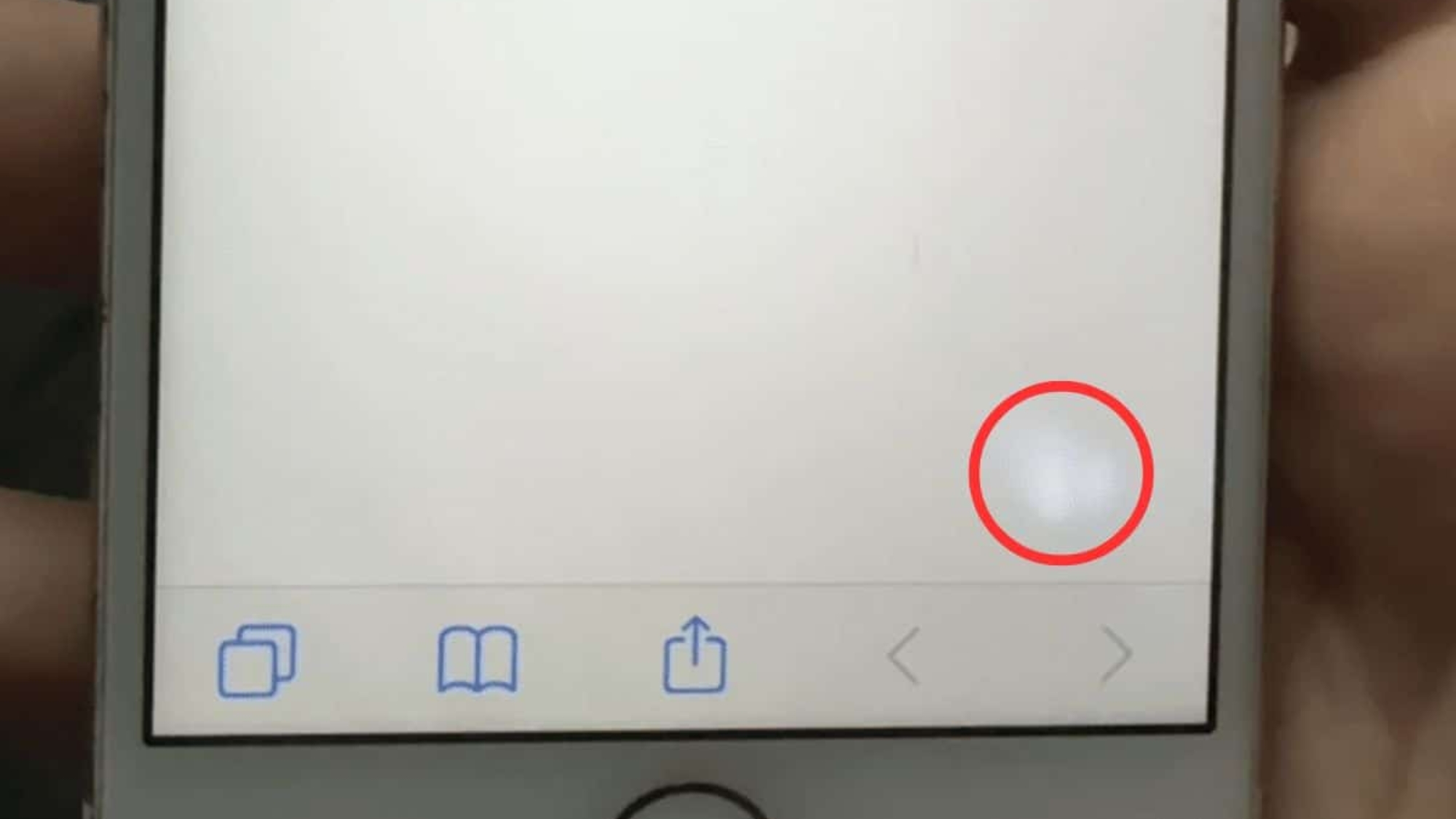
When you see white spots on your screen, you might wonder why there is a white spot on your screen and how to fix white spots on phone screen. In most cases, white spots are caused by pressure damage, stuck pixels, or internal display issues.
Some can be fixed at home with some easy troubleshooting, but others need a screen replacement. Before assuming the worst, there are a few safe things you can do that won’t take more than five minutes.
In this guide, you’ll learn how to fix white spots on a phone screen, how to figure out what caused the issue, which safe checks you can try at home, what not to do during DIY fixes, and when it’s time to consider professional screen repair.
Reasons for a White Spot on the Mobile Screen
A phone screen is not just one piece of glass. It has several thin layers inside that work together to show a clear picture. These layers also spread light evenly across the display. In most cases, it is not dirt on top of the glass. The problem is usually inside the screen.
Your phone screen has a few thin parts that work together to show light and color. If one of those parts gets affected, a white dot or patch can appear. The right fix depends on what caused the spot. Here are the main reasons given below:
1 Pressure Damage to LCD Layers: This happens when pressure pushes against your screen. It may come from a tight pocket, a heavy object, or sitting with the phone. The pressure makes the LCD’s inner layers move around. As a result, you may see a cloudy white patch that does not move.
- Backlight diffuser displacement: LCD screens use a backlight to light up the display. A light-spreading layer inside helps the brightness look even. If that layer shifts, one area can look brighter than the rest. It may look like a small spotlight that stays in the same spot.
- OLED pixel cluster failure: OLED screens work a bit differently than LCD. They do not use a backlight. Instead, each pixel makes its own light. When a small group of pixels starts failing, a bright white spot or patch can show up. In some cases, the spot may slowly spread over time.
- Moisture intrusion: Water and humidity can affect a phone screen even if the phone still turns on. Moisture can slip into the layers under the glass. When that happens, light may not pass through evenly. You may notice a white spot, a bright patch, or uneven brightness.
- Factory defect: Sometimes a white spot appears even when the phone has not been dropped, pressed, or exposed to water. In rare cases, the screen may have a defect from the factory. The issue can show up during normal use without any clear reason.
Identify the Type of White Spot
Now that you know the possible causes, this is the next step after making a list of possible reasons. Its important because the way the spot looks can tell you a lot. Its size, shape, and behavior often point to the real problem. Below are the most common white spot types, what they look like, and what they usually mean:
1. Small, Sharp White Dot (Stuck Pixel)
You may notice these signs:
- A tiny bright dot.
- It stays in the same spot every time.
- The edges look sharp.
- It stands out more on dark screens.
What it usually means: One pixel is stuck on and keeps glowing.
2. Cloudy or Faded White Patch (Pressure Damage)
You may notice these signs:
- A soft white patch, not a sharp dot.
- The edges look blurry or uneven.
- It appeared after the phone was pressed or squeezed.
- The patch stays in the same place and does not flicker.
What it usually means: The screen layers were pressed, so light does not spread evenly in that area.
3. White Spot That Appeared After Dropping the Phone
You may notice these signs:
- The spot showed up right after the phone was dropped.
- It looks like a bright patch or a light “bubble.”
- The spot may slowly get bigger over time.
- It stays in the same place on the screen.
What it usually means: The drop affected the screen layers inside, so the display is damaged in that area.
4. White Spot After Water Exposure
You may notice these signs:
- The spot appeared after contact with water or high humidity.
- The brightness in that area looks uneven.
- The spot may change slightly over time.
- Other parts of the screen may look dim or washed out.
What it usually means: Moisture may have slipped into the layers under the screen, which can make that area look brighter than it should. If the spot showed up after water contact, take a look at our guide on how to get water out of your phone so you can dry it the right way and stop the problem from getting worse.
5. Bright Area on LCD Screens (Backlight Issue)
You may notice these signs:
- A bright patch that looks like a small spotlight.
- More visible on white or light backgrounds.
- The area does not move or flicker.
- Brightness looks uneven compared to the rest of the screen.
What it usually means: The light-spreading layer inside the LCD has shifted, so the brightness is not even in that area.
6. Expanding Bright Cluster on OLED Screens
You may notice these signs:
- A bright area that started small.
- The spot slowly spreads over time.
- It looks stronger at higher brightness levels.
- More common on OLED devices
What it usually means: A group of pixels inside the OLED screen is failing, causing the bright area to grow.
How to fix white spots on phone screen (Safe DIY Methods)
Now that you have identified the type of white spot, the next step is to try a few safe checks at home. Some problems can be fixed with simple steps, but some issues need to be repaired. These DIY steps are safe and low risk. So before you visit a professional repair center, try these steps below:
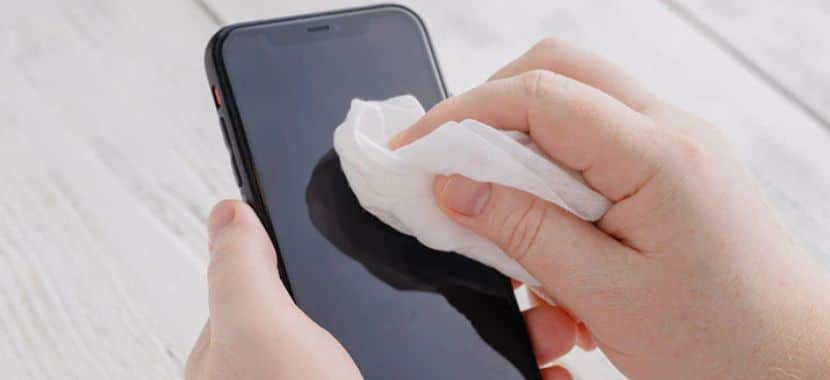
Step 1: Clean the screen
Turn off your phone and look at the screen in good light. Sometimes a smudge or dried dirt can look like a white mark. Wipe the screen gently with a clean microfiber cloth. Do not use tissues or paper towels because they can scratch the glass. If you need to, wet the cloth with a few drops of water, but do not spray water right on the screen. When you are done, turn the phone back on and check the spot again. If it is still there, the problem is likely inside the screen.
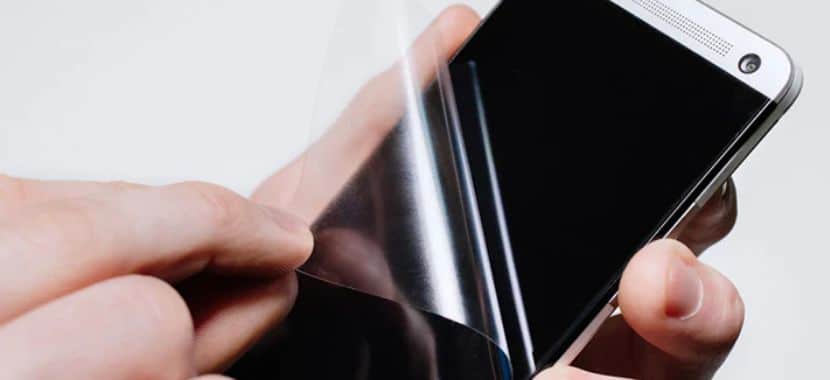
Step 2: Remove the protector
If cleaning does not change the spot, the next thing to check is the screen protector. A protector can keep dust or air in, and a broken part of the screen can show up as a white dot. Remove it slowly from one corner so you don’t pull too hard.
After that, wipe the screen once with a microfiber cloth and look at the spot again. If the mark disappears, the protector was causing it. If it stays the same, that means the problem is likely inside the screen.
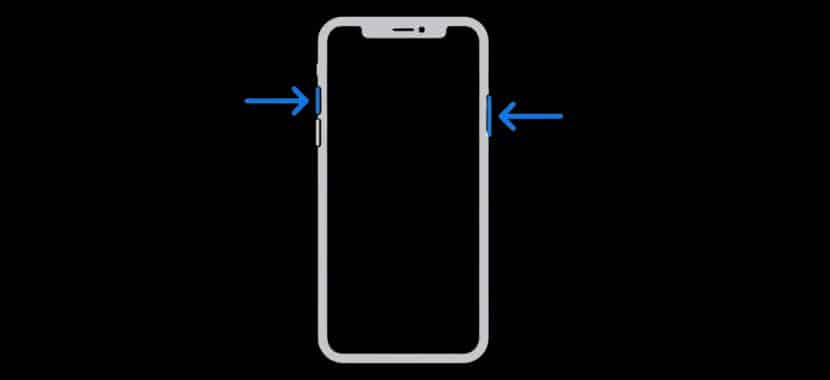
Step 3: Take a Screenshot to Check the Cause.
If the spot is still there, a screenshot can help you figure out what is going on. Take a screenshot on your phone, then open that screenshot on another device, like a laptop or a friend’s phone.
If the white spot shows up in the screenshot, the issue may be related to software or a display setting. If the spot does not show up in the screenshot, the problem is likely inside the screen itself.
Step 4: Restart Your Phone
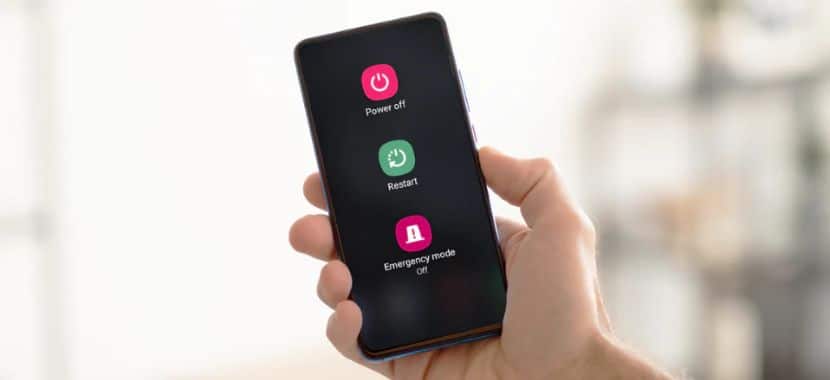
If the screenshot test does not show the spot, then try restarting your phone. A small system glitch can sometimes affect how the screen displays light and color.
Turn your phone off completely and wait a few seconds before turning it back on. Once it restarts, check the screen again. If the white spot is still there, the issue is most likely related to the screen hardware rather than the software.
Pixel refresh

Step 5:Try a Pixel Refresh (For Small White Dots Only)
If the white spot looks like a tiny bright dot, it may be a stuck pixel. In that case, you can try a pixel refresh method. There are simple videos and apps that flash different colors quickly to help reset the pixel.
Watch the video or app run for about 10 to 15 minutes. Keep the brightness at a normal level while it runs. After that, check the screen again. If the dot is still there, the pixel may be permanently stuck.
If these DIY steps are not enough to solve the issue in that case, you should go for a professional inspection. Early repair can prevent further damage and higher costs. And if your screen is cracked too, you can follow this guide on where to fix a cracked phone screen.
What NOT to Do During DIY Fixing
Some DIY moves can make the screen worse, even if they look harmless. If you want to avoid extra damage, stay away from these steps:
- Do not press or rub the spot hard. It can push the damage deeper and make the bright area spread.
- Do not use heat, like a hair dryer. Heat can affect the screen and loosen parts inside the phone.
- Do not open the phone at home. It’s easy to damage small parts, and the phone may not seal back properly.
- Do not trust “massage” hacks from random videos. They rarely work and often make the spot bigger.
Tips to Prevent White Spots on Phone Screen
- Avoid tight pockets.
- Do not sit on your phone.
- Use a high-quality protective case.
- Keep the phone away from steam and humidity.
- Avoid placing heavy objects on it.
- Use certified chargers
Other Guides:
Final Thoughts
At this point, you know why white spots show up, how to tell what type you have, and which safe checks are worth trying first. That helps you avoid guesswork and the risky tricks that can make screen damage worse. If the spot stays the same, keeps spreading, or starts after a drop or water contact, it usually means the issue is inside the display and needs proper repair.
In that case, Techy can check your phone and handle screen repair or replacement. And if you feel the phone is too old to fix, you still have a simple option. You can use our electronics buyback for cash program to sell or trade in your device instead of leaving it unused.
Add a Comment