


Breaking a phone is stressful, but losing the data inside feels even worse. Photos, videos, contacts, messages, and work files often live only on that one device. When the screen cracks, the phone falls into water, or it suddenly stops turning on, many people assume their data is gone forever. That assumption is usually wrong. We’re going to discuss How To Recover Data From Broken Phone.
In most situations, data can still be recovered if you follow the right steps and avoid common mistakes. This guide explains how to recover data from a broken phone using practical, proven methods that work for both Android and iPhone users. Data recovery success depends on several factors. The type of damage matters. A phone with a broken screen is very different from one with motherboard damage. Storage location also matters. Some data is stored on SD cards, some on internal storage, and some in cloud backups.
Recovering Media From SD Card: How to Recover Data from Broken Phon
If your phone uses an SD card, you already have one of the easiest recovery paths. SD cards store photos, videos, music, and documents separately from the phone’s internal system. Even if the phone is completely broken, the SD card may still work.
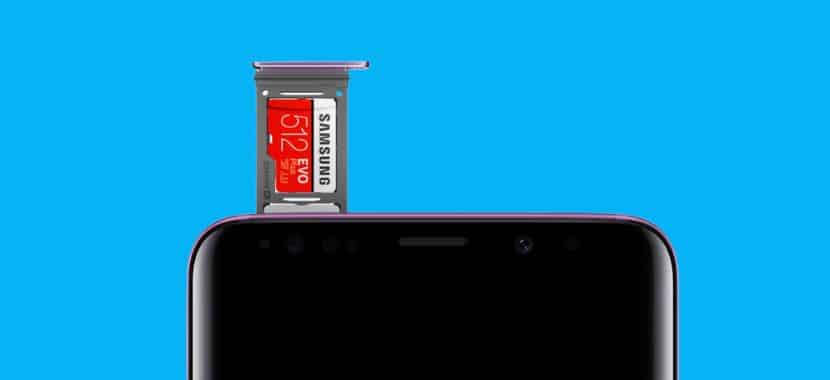
Method #1 – Adding an SD Card to Another Device
This is the fastest and safest option when available. Here are the simple steps to add an SD Card to another device:
- First, power off the broken phone completely.
- Remove the SD card carefully to avoid bending or scratching it.
- Insert the SD card into another Android phone, tablet, or a computer using an SD card reader.
- Once connected, open the storage folder. You can then copy photos, videos, and documents to your computer or another device.
This method works best when the SD card is not physically damaged. It is ideal for recovering media files, downloaded files, and music. If the card is readable, recovery is usually almost complete with no software needed.
Method #2 – SD Card Recovery Software
Sometimes the SD card is detected, but files are missing or corrupted. In that case, SD card recovery software can help.
Recovery software scans the card for deleted or damaged files and attempts to rebuild them. To improve success, stop using the SD card immediately. Using it further can overwrite data and reduce recovery chances. Install recovery software on your computer, insert the SD card, and run a full scan. Save recovered files to your computer, not back onto the SD card.
This method is useful for deleted photos, lost videos, and corrupted files. Results depend on how damaged the card is and whether the data has been overwritten.
Using USB Cable To Recover Lost Data From a Broken Android Phone
If your Android phone still powers on, even with a broken screen, you may be able to recover data using a USB cable and a computer.

Method #1 – Connect To A Computer To Recover Media Files
If your phone screen is broken and you’re not sure how to recover your data using a USB cable, don’t worry. You can still access your Android phone, including Samsung devices, with the help of a computer.
- You’ll need three things: a computer or laptop, a USB cable, and your damaged phone.
- First, make sure the phone is powered on. Even if the screen doesn’t work, the device must be running to access the files.
- Next, connect your phone to your computer using the USB cable. If this is the first time you’ve connected the device, your computer will automatically install the required drivers.
- Once the connection is complete, open “My Computer” or “This PC” on your computer and double-click on your phone’s name. You should now see folders containing your documents, photos, videos, and other data.
- Select the files you want to recover and copy them to your computer. After transferring everything, it’s a good idea to create a compressed archive using a tool like WinRAR to keep your recovered data safe and organized.
- This is a simple way to access an Android phone with a broken screen and recover important files using a PC.
Method #2 – Use the Recovery App to Recover 100% of Data
The method above only allows you to recover documents and media files. For complete data recovery, including contacts, call logs, notes, text messages, and previously deleted or lost data, you will need to use professional data recovery software. Here are the simple steps:
- The method above only recovers documents and multimedia files.
- To recover all data, such as contacts, call logs, messages, notes, and deleted files, data recovery software is required.
- Download and install the full version of a reliable data recovery program on your computer.
- Open the software and select the phone storage or folder you want to recover data from.
- Start the scan to find lost or deleted files.
- Preview, save, and rename the recovered files on your computer.
- This method works when the phone turns on, but it cannot be controlled due to a broken screen.
Recover Contacts From SIM Card
Many phones store contacts on the SIM card, especially older models. If your contacts were saved there, recovery is simple.
Remove the SIM card from the broken phone and insert it into another phone. Go to contact settings and import contacts from the SIM card. This method restores phone numbers and basic contact details. It does not recover photos, messages, or app data.
Use a Google Account To Recover Data From a Dead Phone
Google accounts are one of the most reliable recovery options for Android users. If your phone was linked to a Google account, much of your data may already be backed up.
Google backups can include contacts, photos, videos, calendar events, app data, and settings. Sign in to your Google account on a new Android phone and restore data during setup. You can also access Google Drive and Google Photos from any browser.
This method works even if the phone will not turn on, as long as backups were enabled before the damage occurred.
Other Guides:
- How to Unlock a Blu Phone?
- Tips for Repairing Water-Damaged Smartwatches
- Where is the Power Button on an Asus Laptop – 5 Tips for Locating
- How to Check If Your Phone Is Tapped (Complete Guide)
Best Way To Unlock An Android Phone If You Forgot Your Password?
The best way to unlock an Android phone if you forgot your password is to use Google’s Find My Device service, as it can often be done remotely without data loss. If that is not an option, a factory reset is the most reliable method, though it will erase all data on the phone.
Method 1: Use Google’s Find My Device (Recommended)
This method works if your phone is turned on, connected to the internet (Wi-Fi or mobile data), and has location services enabled.
- Open a web browser on a computer or another smartphone and go to the Google Find My Device page.
- Sign in with the same Google account (Gmail address and password) that is linked to the locked phone.
- Select the locked device from the list of devices linked to your account.
- Choose the Secure device (or Lock) option.
- You will be prompted to set a temporary password. Enter a new password and confirm it.
- Once successful, a password field should appear on your phone where you can enter this new temporary password to unlock it.
- After regaining access, go to your phone’s lock screen settings to disable the temporary password and set a new permanent one.
Note: For some newer Android versions, the “Lock” option may no longer allow you to set a temporary password and might default to the “Erase device” function, which results in data loss.
Method 2: Use Samsung’s Find My Mobile
If you have a Samsung phone, you can use the SmartThings Find service, which works similarly to Google’s method and often preserves data. This requires a Samsung account to be registered on the device with the Remote unlock option enabled beforehand.
Method 3: Factory Reset (Last Resort)
If the above methods are unavailable or do not work, a factory reset will erase all data, including the password, allowing you to use the phone again. You will need the Google account credentials previously synced to the phone to pass the Factory Reset Protection (FRP) after the reset.
- Power off the phone completely. (You may need to hold the Power button for 10+ seconds if the screen is unresponsive.)
- Boot into Recovery Mode using specific button combinations. The combination varies by manufacturer (common methods include holding Volume Down + Power or Volume Up + Power simultaneously).
- Use the volume buttons to navigate the recovery menu and the power button to select options.
- Select Wipe data/factory reset, and confirm the action.
- Once the reset is complete, select Reboot system now.
- The phone will reboot, and you can set it up as a new device, signing in with your Google account to restore backed-up data.
How to Recover Data From A Broken iPhone Screen?
Recovering data from a broken iPhone depends mainly on backups.
If iCloud backup was enabled, sign in to iCloud.com to access photos, contacts, notes, and files. You can restore everything to a new iPhone during setup.
If you synced your iPhone with a computer before, connect it to that trusted computer and restore data using iTunes or Finder. If the screen is broken but the phone turns on, trusted connections may still allow backup access.
Get Help From A Local Repair Shop
When DIY recovery methods fail, a professional repair shop often provides the best chance of success. Technicians can temporarily replace broken screens, fix power issues, and access internal storage safely.
Repair shops use specialized tools that can recover data from water-damaged phones, devices with motherboard problems, and phones that will not turn on. While this option costs more, it is often worth it for important or irreplaceable data.
Recycle Your Broken Phone
Once your data is recovered or confirmed unrecoverable, recycling the phone is the responsible next step. Electronics recycling helps protect the environment and prevents personal data misuse.
Before recycling, erase your data if possible. Remove SIM cards and SD cards. Proper recycling ensures your device does not end up in landfills or unsafe disposal channels.
IT Recycling Services By Techy
Professional IT recycling services like Techy provide secure phone disposal and certified data destruction. These services ensure that personal information is permanently removed before recycling. We also offer electronic device buyback or trade-in services in
Techy focuses on eco-friendly processing, compliance, and safe disposal of electronic waste. This option is ideal for individuals and businesses seeking secure, responsible electronics recycling.
The Bottom Line
Knowing how to recover data from broken phone can save valuable memories and important information. The right recovery method depends on phone damage, storage type, and backup availability.
SD cards offer the easiest recovery path. Google and iCloud backups provide fast restoration. USB connections allow direct file access. Professional repair shops deliver the highest success rate for severe damage.
Sell Your Used Devices to Techy Buyback Program
Techy’s Buyback Program enables customers to sell used devices for competitive cash or credit. It provides instant online quotes, flexible in-store or mail-in options, secure data wiping, and nationwide convenience. With hundreds of locations and transparent pricing, Techy ensures fast payment and eco-friendly handling of electronics, helping individuals, schools, and businesses turn old tech into value while reducing e-waste.
Add a Comment