


How to reset Samsung Galaxy tablet? Resetting a Samsung Galaxy tablet can fix slow performance, frozen apps, storage errors, and a long list of everyday issues. But the reset process can feel confusing if you don’t know what each option does or what to expect afterward. This guide breaks everything down in simple steps.
You’ll learn how to soft reset, factory reset, troubleshoot problems after a reset, and reset popular models like the Galaxy Tab A, Tab S6, S7, and S8. Whether your tablet is stuck on the Samsung logo or running slow, you’ll find clear answers and real fixes you can use right away.
Why Would You Need to Reset Your Samsung Galaxy Tablet?
You need to reset your device for some reasons. There are several reasons you may need to reset your Samsung Galaxy tablet, such as:
- Your device is slow or keeps freezing suddenly.
- Your tablet won’t respond to touch or commands.
- You’ve been locked out after too many wrong passcode attempts.
- You plan to upgrade or sell your Tablet devices.
- You are sending in your device for a repair.
- You plan to lend or give your tablet to a family member or friend.
If you plan to sell or give away your Samsung Galaxy tablet, you should do a factory reset to remove all your personal data and return the device to its original settings. This keeps your information safe and prepares the tablet for its next owner.
If you’re dealing with issues and want to know how to reset a Samsung Galaxy tablet, start with a quick soft reset. A simple restart fixes many common problems without deleting anything from your device. Save the factory reset as a last step when nothing else works.
Should You Reset Your Samsung Galaxy Tablet? (Start Here)
You should reset a Samsung Galaxy tablet if it is slow, frozen, or has software glitches. On the other hand, if you want to erase your data before selling or giving it away. A factory reset can fix problems and refresh the device, but it will erase all personal data and apps.
If you want to fix minor issues without losing data, a simple restart is often enough. Here are the most common problems you can fix by resetting your tablet:
Common Issues a Reset Can Fix
A reset can solve many software-related problems on your Samsung Galaxy tablet. It clears temporary glitches and gives your system a clean start. Here’s what it usually helps with:
- Slow Performance: When your tablet feels sluggish, a reset clears background processes and cached data that may be slowing it down.
- Apps Crashing: If apps keep closing or freezing, a reset refreshes the system files that those apps rely on.
- Touch Not Responding: Minor touch glitches often come from software hiccups, and a quick reset can restore normal touch response.
- Storage Errors: A reset helps clear corrupted files and can fix issues where the device misreads its available storage.
- Wi-Fi or Bluetooth Issues: Connectivity problems can sometimes be caused by incorrect settings or system bugs. Resetting often restores stable connections.
Other Guides:
- How to Unlock a Blu Phone?
- Tips for Repairing Water-Damaged Smartwatches
- Where is the Power Button on an Asus Laptop – 5 Tips for Locating
- How to Check If Your Phone Is Tapped (Complete Guide)
When a Reset Won’t Help? (And What to Try Instead)
Not every problem is related to software. A reset is powerful, but it can’t fix physical damage. Here’s when it won’t solve your issue:
- Hardware Damage: If internal components are damaged, only a technician can troubleshoot and repair the tablet.
- Battery Issues: Battery swelling, fast draining, or charging problems usually need professional service or a battery replacement.
- Water Damage: Moisture inside the tablet causes unpredictable behavior that resets cannot fix.
- Broken Display: Cracks, dead pixels, or touch that fails because of screen damage require screen replacement, not a reset.
Before You Reset: Backup, Remove Accounts & Prepare Your Tablet
Resetting your tablet can help with performance issues or prepare it for resale. Before you proceed, you must take essential steps to back up your data, remove security accounts, and prepare the device to prevent potential data loss or security issues.
Back Up Your Data
A factory reset erases everything on your tablet. Ensure all your important data is safely stored elsewhere.
- Cloud Backup: Sync photos, contacts, and app data to a cloud service (like Google Drive, Samsung Cloud, or Dropbox).
- Physical Backup: Transfer files, photos, and videos to a computer or an external hard drive.
- Check MicroSD Card: If you have an SD card, remove it before the reset to ensure its contents are not erased (depending on your tablet model and settings).
Remove Security Accounts (Crucial Step)
If you reset your device without removing the associated Google account or manufacturer-specific accounts (like a Samsung account), you may trigger Factory Reset Protection (FRP). FRP is a security feature that requires you to log in with the previously synced account credentials after the reset, making the device unusable if you forget the password or the account details.
How to remove accounts (steps may vary slightly by manufacturer and Android version):
Google Accounts
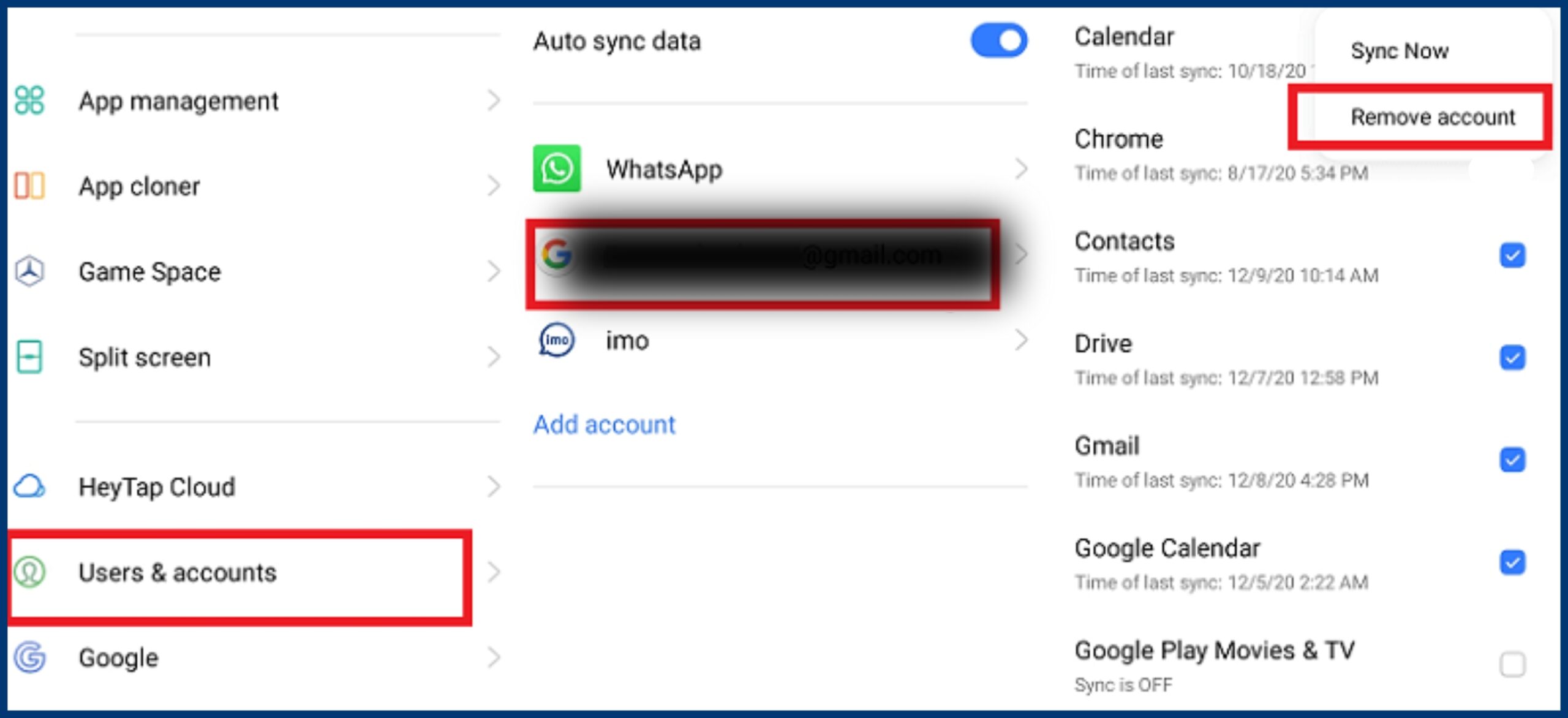
- Go to Settings > Accounts (or Accounts and Backup).
- Tap on your Google account(s).
- Tap Remove account (you may need to confirm with your password or PIN).
- Repeat for all listed Google accounts.
Samsung Accounts
- Go to Settings > Accounts and backup > Accounts.
- Tap on your Samsung Account.
- Tap Personal info or My profile.
- Look for an option to sign out or remove the account from the device.
What You’ll Lose After a Factory Reset?
A factory reset on your Samsung Galaxy Tablet wipes everything from the internal storage, including downloaded apps, photos, music, videos, messages, contacts, and all personalized settings, returning it to its original, out-of-the-box state to erase user data and software clutter, so always back up your data first.
What gets lost (Internal Storage):
- Personal Files: Photos, videos, music, documents, downloaded files.
- Apps: All downloaded applications and their data/settings.
- Accounts: Logged-in accounts (Google, Samsung, etc.).
- Settings: Wi-Fi passwords, display settings, sound profiles, system customizations, and app preferences.
What usually stays (External Storage & System):
- SD Card: Data on an external microSD card is usually safe, but you must decrypt it first if encrypted.
- System Software: The Android OS and core Samsung software remain, but updates might be removed.
How to Reset Your Samsung Galaxy Tablet? (3 Working Methods)
You can reset your Samsung Galaxy tablet using three primary methods: a soft reset (a restart without data loss), a factory reset via the Settings menu, or a hard reset using hardware buttons (for locked or unresponsive devices). Here are the three methods to reset your Samsung Galaxy Tablet:
Method 1 — Soft Reset (Quick & Safe)
A soft reset is essentially a normal restart and is ideal for fixing minor glitches, unfreezing the device, or clearing minor bugs without affecting your personal data.
- Press and hold the Power button and the Volume Down button simultaneously for a few seconds.
- The screen will go black, and the device will power down.
- Wait a few seconds, then press and hold the Power button again to turn it back on.
Method 2 — Factory Reset from Settings (If Tablet Is Working)
This method requires you to be able to access the tablet’s settings menu and will erase all data, apps, and personal settings, restoring the tablet to its original factory state.
- Open the Settings app.
- Navigate to and select General Management.
- Tap Reset, then select Factory Data Reset.
- Review the information on what will be erased, and then tap Reset.
- If you have a security lock, you will be prompted to enter your PIN, pattern, or password.
- Tap Delete All to confirm and start the reset process.
Method 3 — Hard Reset Using Buttons (If Locked or Frozen)
If your tablet is frozen, you have forgotten your password, or you cannot access the settings menu, you can perform a hard reset using the hardware buttons.
- Turn off the device completely. If the screen is unresponsive and you cannot power it off normally, wait for the battery to drain completely or try holding the power and volume down buttons to force a shutdown.
- Once off, press and hold the Volume Up button and the Power button simultaneously. (For older models with a physical Home button, press and hold Volume Up, Home, and Power simultaneously).
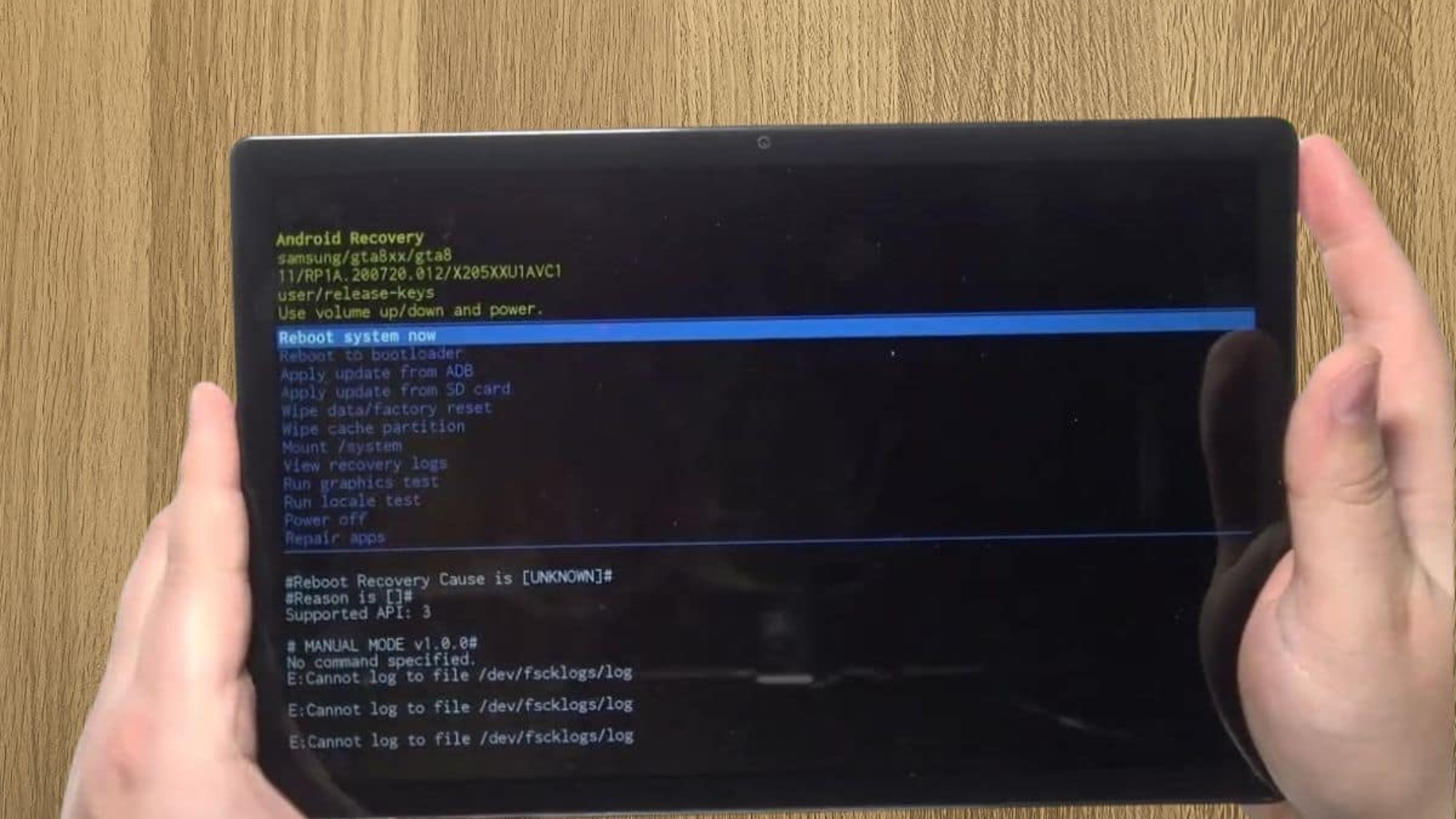
- Release the buttons when the Samsung Logo appears on the screen (or the Android Recovery screen appears after a blue screen saying “Installing system update”).
- In the Android Recovery menu, use the Volume buttons to navigate to Wipe Data/Factory Reset.
- Press the Power button to select the option.
- Use the Volume buttons to highlight Yes – Delete All User Data (or simply Yes) and press the Power button to confirm.
- Once the reset process is complete and you see “Data wipe complete” at the bottom of the screen, highlight and select Reboot System Now using the Power button.
- The tablet will restart and be in its original factory condition.
Note: After a factory or hard reset, you may be required to sign in with the Google Account that was previously linked to the tablet (Factory Reset Protection – FRP). Ensure you have these credentials available before starting the reset process.
How to Reset Samsung Tablet Without a Password?
To factory reset a Samsung tablet without the password, you must use the button combination to enter Android Recovery mode, as the device cannot be turned off normally while locked.
Press and hold the Volume Down and Power buttons to force a restart, then immediately switch to holding Volume Up and Power until the recovery menu appears. From there, navigate to “wipe data/factory reset” using the volume buttons and confirm with the power button.
Step 1: Force the Tablet to Restart
- Press and hold the Volume Down and Power buttons at the same time for about 10 seconds, until the tablet restarts.
- When you see the Samsung Logo, release the Volume Down button but continue to hold the Power Button.
Step 2: Enter Recovery Mode
- While still holding the Power button, press and hold the Volume Up button.
- Keep holding both buttons until the Android Recovery menu appears on the screen.
Step 3: Perform the Factory Reset
- Use the Volume buttons to navigate down to the “Wipe Data/factory Reset” option.
- Press the Power button to select it.
- You will be asked to confirm. Use the Volume buttons to select “Yes” or “factory data reset” and press the Power button again.
How to Reset a Samsung Galaxy Tablet That Won’t Turn On?
To reset a Samsung tablet that won’t turn on, first try a force restart by holding the Power and Volume Down buttons for 10-15 seconds to force a reboot; if that fails, plug it in to charge for at least 30 mins, then repeat the force restart, and if still stuck, boot into Android Recovery Mode (Volume Up + Power) to perform a factory reset (which erases data), or try smacking the back to wake it up.
Step 1: Basic Checks & Charge
- Inspect Charger: Check the cable, adapter, and port for damage or debris.
- Charge: Plug into a wall outlet (not a power strip) and let it charge for at least 30 minutes to an hour, especially if the battery was dead.
Step 2: Force Restart (Most Common Fix)
- Unplug the charger if it’s connected.
- Press & Hold: Simultaneously press and hold the Power button and the Volume Down button for 10-15 seconds.
- Release when you see the Samsung logo or feel a vibration.
Step 3: Try Alternative Button Combo
- If Volume Down + Power doesn’t work, try holding the Power button and Volume Up button for 15 seconds to see if it enters Maintenance Boot Mode or restarts.
- If it enters Maintenance Boot Mode, use Volume buttons to select “Normal Boot” and press the Power button to select.
Step 4: If Still Unresponsive (Factory Reset via Recovery Mode)
This erases all data on the tablet. So, be careful about this Factory Reset!
- Connect to Charger: Plug the tablet in.
- Enter Recovery: Press and hold Volume Up + Power button until the Android Recovery screen appears.
- Navigate: Use the Volume buttons to scroll to “Wipe data/factory reset” and press the Power button to select.
- Confirm: Select “Yes” and then “Reboot System Now” when it’s done.
Troubleshooting After a Reset
If your Galaxy tablet still acts strangely after a reset, don’t worry. Many issues show up only after the device restarts and begins rebuilding system files. The next section walks you through the most common problems people face after a reset and how to fix them step by step. It helps you figure out what’s normal and what needs a closer look.
Stuck on Samsung Logo After Reset
If your Galaxy tablet stays on the Samsung logo, it’s usually rebuilding system files. Give it a few minutes. If it doesn’t move, hold the power button to force a restart. Still stuck? Enter recovery mode and wipe the cache. If nothing changes, the device may have a deeper software issue that needs expert help.
Apps Not Restoring? (Fix Account Sync Issues)
Missing apps after a reset often mean your Google account isn’t syncing. Sign in with the same account you used before, open Settings, and turn on sync. Then check the Play Store and reinstall missing apps. For paid apps not showing, refresh the Play Store and confirm your payment profile is active.
Tablet Gets Hot After Reset (Normal vs Not Normal)
A warm tablet right after a reset is normal because the system is syncing and updating. The heat should settle within an hour. Heat that keeps rising, a hot back cover, or fast battery drain is not normal and may point to a hardware issue or a process stuck in the background.
Alternatives to Resetting (Less Drastic Fixes)
A full reset isn’t always the best move, and you may not need one at all. Before wiping your data, try a few lighter fixes that can solve most slowdowns and app issues. The next section shows simple, safe options you can try first to get your tablet running better without losing anything important. Here are the easy steps:
Clear Cache
A full reset isn’t always needed. Clearing the cache often fixes slow performance or small bugs. Cache files pile up over time, and removing them gives the system a fresh start without deleting your personal data.
Delete Unused Apps
Old or unused apps can slow the tablet down, drain the battery, and cause storage errors. Remove any apps you don’t use. This frees up space and reduces background activity that can cause glitches.
Update Firmware
Outdated firmware is a common source of crashes and touch issues. Make sure your tablet is running the latest version of Samsung’s software. Updates fix known bugs and improve system stability, so installing them often solves problems without needing a reset.
Run Device Diagnostics
Use Samsung’s built-in diagnostics or the Samsung Members app to check your hardware. It can test your battery, screen, sensors, and storage. This helps you find the real issue before you jump to a full reset.
Add a Comment