


How to Find Blocked Numbers on iPhone is a common question when calls or messages suddenly stop coming through. You might have blocked a number by mistake or forgotten who you blocked earlier. Since iPhone settings hide blocked contacts in different places, finding them can feel confusing at first.
In this guide, you’ll learn simple ways to find blocked numbers on iPhone, check your blocked contacts list, and manage blocked calls and messages. We’ll walk through easy steps using Phone, Messages, and FaceTime settings, so you can quickly review, unblock, or control unwanted numbers without any stress.
Why Check Your Blocked List?
You should check your blocked list to ensure important contacts aren’t accidentally blocked, prevent unwanted messages from slipping through to your inbox (like from Outlook’s junk filter), manage privacy by reviewing who you’ve stopped seeing (on Facebook/TikTok), or unblock someone if you changed your mind, all while understanding that a 48-hour wait often applies before you can re-block someone, say wikiHow users. Key Reasons to Check Your Blocked List:
- Prevent Missed Communications: Reviewing your junk/blocked email folders (such as in Outlook) helps catch important messages that are misdirected as spam.
- Privacy Management: On platforms like Facebook, checking your list allows you to see exactly who you’ve restricted from viewing your profile or contacting you.
- Correct Mistakes: You can find and remove people you’ve blocked accidentally (e.g., on Google or WhatsApp) if you want to reconnect or allow contact again.
- Review Blocked Content: On TikTok, it ensures you know which users can’t interact with you.
How to Find Blocked Numbers on iPhone Step-By-Step?
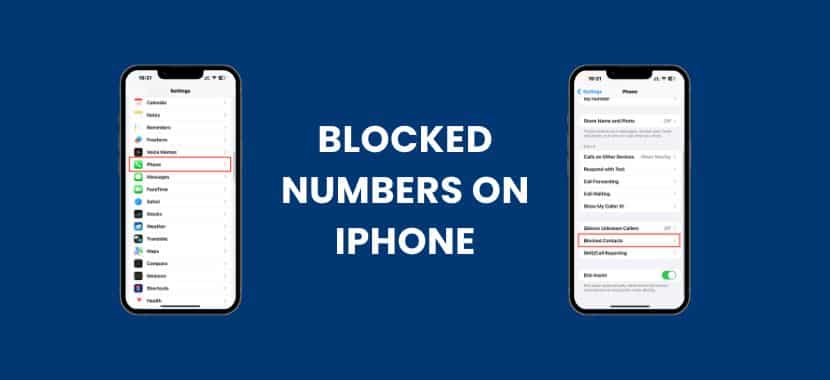
To find blocked numbers on your iPhone, open Settings > Phone > Blocked Contacts, or for Messages/FaceTime, check Settings > Messages > Blocked Contacts or Settings > FaceTime > Blocked Contacts, revealing lists where you can also add or unblock numbers by tapping ‘Edit’ or ‘Add New’.
Step-by-Step Guide:
- Open Settings: Tap the gray gear icon on your iPhone’s Home Screen to open the Settings app.
- Go to Phone Settings: Scroll down the list and tap on Phone.
- Access Blocked Contacts: Scroll to the bottom of the Phone settings and tap on Blocked Contacts.
- View Your List: Here you’ll see all numbers, contacts, and even emails you’ve blocked across calls, messages, and FaceTime.
Managing Your Blocked List
- To Unblock: Tap Edit in the top right, then tap the red minus sign next to a contact and select Unblock.
- To Add: Scroll to the bottom and tap Add New… to select from your contacts or recent calls.
For Messages & FaceTime (Alternative Paths)
You can also find blocked lists directly within other apps:
- Messages: Settings > Messages > Blocked Contacts.
- FaceTime: Settings > FaceTime > Blocked Contacts.
How to Unblock a Number on iPhone?
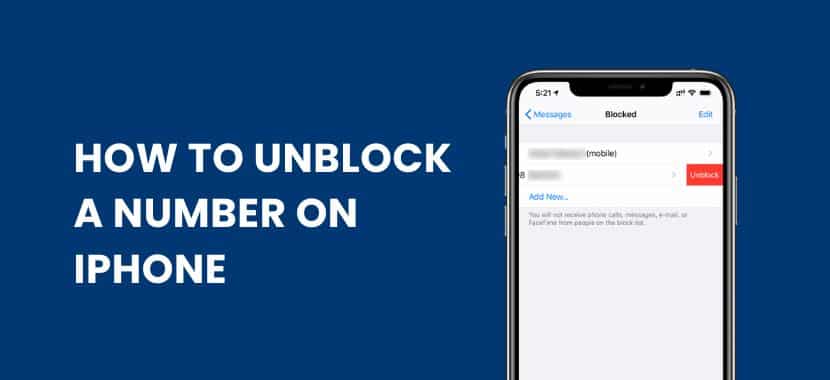
To unblock a number on an iPhone, go to Settings > Phone > Blocked Contacts, tap Edit, then the minus icon next to the number and Unblock, or swipe left on the contact and tap Unblock; you can also unblock directly from the Phone app or Messages by finding the contact/number and selecting the unblock option.
Method 1: Via Settings (Most Common)
- Open the Settings app on your iPhone.
- Scroll Down and tap on Phone (or Privacy & Security for newer iOS versions).
- Tap Blocked Contacts (or Call Blocking & Identification).
- Tap Edit (top right) or find the contact and swipe left on it.
- Tap the red minus icon or the Unblock Button next to the number, then tap Unblock to confirm.
Method 2: From the Phone App (Recent Calls)
- Open the Phone app and go to the Recents tab.
- Tap the information icon (a blue ‘i’ in a circle) next to the blocked number.
- Scroll down and tap Unblock this Caller.
Method 3: From Messages
- Open the Messages app and tap the conversation with the blocked contact.
- Tap the contact’s name or number at the top.
- Tap Info or Info > Info.
- Scroll down and select Unblock this Caller.
Method 4: From Contacts App (If saved)
- Open the Contacts app and find the person you want to unblock.
- Scroll to the bottom of their contact card.
- Tap Unblock this Caller.
Alternative Ways to Find Blocked Contacts on Your iPhone
Blocked contacts on an iPhone are not always easy to spot, especially if you don’t remember blocking someone. iOS keeps this list hidden inside the settings, which can confuse many users. Knowing where to look and what signs to check can save time and avoid missed calls or messages. This section explains simple alternative ways to find blocked contacts on your iPhone, so you can review, manage, or unblock numbers when needed without any hassle. Here are the steps:
The Main Method (Phone, Messages, FaceTime)
- Open Settings: Tap the grey gear icon on your home screen.
- Choose Your App: Scroll down and tap on Phone, Messages, or FaceTime (you’ll see the same list in each).
- Find the List: Scroll down to the bottom and tap Blocked Contacts.
- Manage: Tap Edit (top right) to remove numbers (red minus icon) or Add New to add more.
For Mail (Email Contacts)
- Open Settings: Tap the grey gear icon.
- Find Mail Settings: Scroll down and tap on Mail.
- Check Blocked List: Scroll down and tap Blocked to see emails you’ve blocked.
Other Guides:
- How to Unlock a Blu Phone?
- Tips for Repairing Water-Damaged Smartwatches
- Where is the Power Button on an Asus Laptop – 5 Tips for Locating
- How to Check If Your Phone Is Tapped (Complete Guide)
- How to Reset Samsung Galaxy Tablet (Step-by-Step Guide for All Models)
- How To Recover Data From Broken Phone Quickly
What to Do If You Don’t See the “Phone” Option
If the Phone option is not showing in Settings, it usually means your iPhone is not detecting a SIM or eSIM. Try these quick fixes:
- Check your SIM or eSIM: iPhones need an active SIM or eSIM to display the Phone menu. Insert a SIM card or set up an eSIM if one is missing.
- Use Messages or FaceTime settings: You can still manage blocked contacts through Messages or FaceTime.
- Restart your iPhone: Press and hold the Side button and the Volume button, slide to power off, wait about 30 seconds, then turn your iPhone back on.
Tips to Manage Blocked Numbers
Block unknown callers:
- Go to Settings > Phone > Silence Unknown Callers. This stops calls from numbers that are not saved in your contacts.
Block from Recents:
- Open Phone > Recents, tap the ⓘ icon next to a number, then select Block this Caller.
Use Focus Modes:
- Set up a Focus mode like Work or Personal to allow calls only from selected contacts.
Review your blocked list regularly:
- Check your blocked numbers once a month and remove any that you no longer need to block.
Sell Your Used iPhone With Techy
Sell your used iPhone fast with Techy. Our iPhone buyback program makes it simple to sell your used iPhone for a fair price, whether you’re upgrading or just want extra cash. Get a quick quote, choose a convenient drop-off, and finish the process with less hassle.
Trade in your iPhone with confidence and keep your data protected. Techy helps you sell old iPhone models in good, cracked, or used condition, with a smooth experience from quote to payout.
Conclusion
How to Find Blocked Numbers on iPhone becomes simple once you know where Apple stores blocked contacts. By checking the Phone, Messages, and FaceTime settings, you can quickly view your blocked numbers list and understand who cannot call or message you. This helps avoid missed calls and keeps your communication clear.
With these steps, you can easily manage blocked contacts on your iPhone, unblock numbers when needed, and control unwanted calls. Taking a few minutes to review your blocked callers list now and then ensures your iPhone settings work the way you want and your important calls never get ignored.
Add a Comment